
Ready to get started?
Easily integrate next-generation payments and financial data into any app. Build powerful products your customers love.
SHARE ARTICLE


 Share link copied!
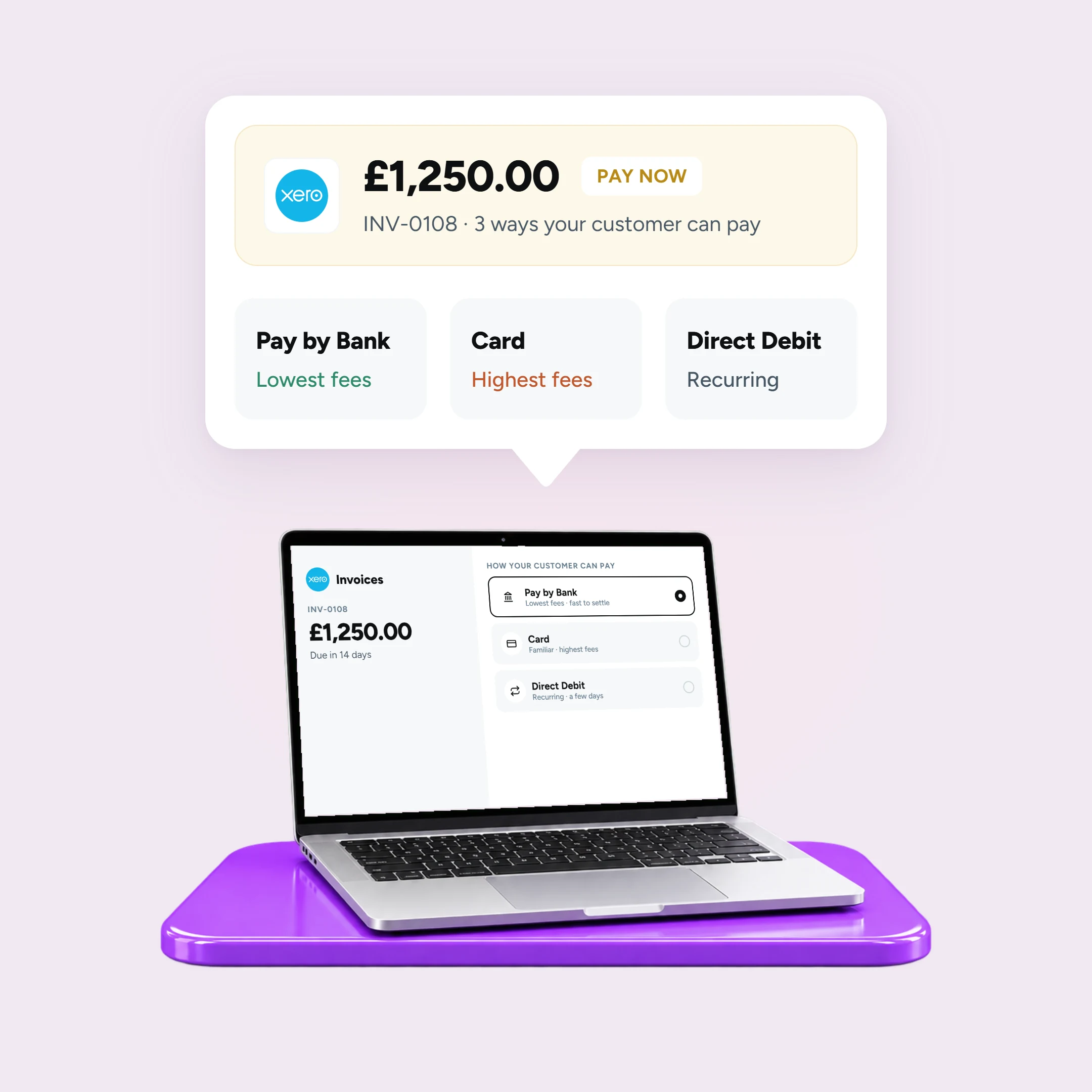
If you want to accept payments in Xero, the setup is simpler than most people expect. Xero handles the invoicing side, but the payment itself needs a connected payment service to work. Once you connect one, every online invoice you send carries a ‘Pay now’ button. The customer clicks it, chooses Pay by Bank or card, and Xero marks the invoice as paid and reconciles it automatically.
This guide walks through how to accept invoice payments in Xero using Atoa, a certified Xero App Store partner, and what the experience looks like for you and your customers once it is live.
Before you begin
You will need a Xero account and an Atoa account. If you do not have Atoa yet, you can sign up and complete onboarding first. Card payments are optional: if you enable them on your Atoa account, customers can also pay a Xero invoice by card, not just through Pay by Bank.
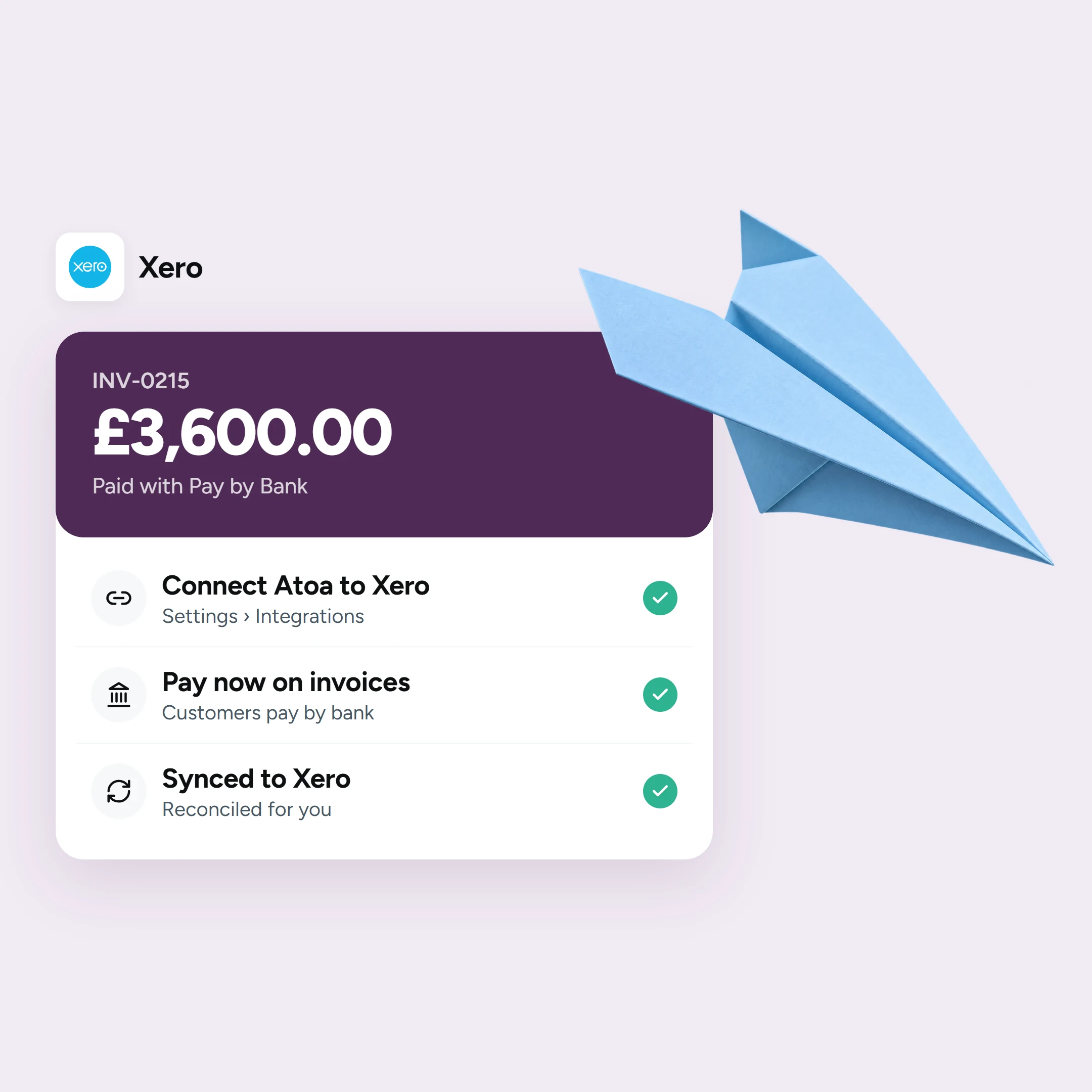
Step by step: Connect Atoa to Xero
Step 1: Log in to your Atoa web dashboard
Click Settings on the left side menu, then select the Integrations tab.
Step 2: Set up the Xero integration
Click Set up now under the Xero integration option, then select Connect to Xero.
Step 3: Authorise access
Atoa will ask for access to your Xero account and ask you to confirm the bank account where your Xero invoice payments will be received. Follow the prompts to complete the connection.
Step 4: Start taking payments
You can now create invoices directly in Xero and get paid instantly with Atoa. Pay by Bank is available immediately, and card payments are included if already enabled on your Atoa account.
Step 5: Send yourself a test invoice
Check that the ‘Pay now’ button appears and works end to end before relying on it with a real customer.
How your customers pay
When a customer opens the invoice and taps the ‘Pay now’ button, they reach a secure payment page:
- On a phone, they scan a QR code or continue on the device, choose their bank, and approve the payment in their Bank app with Face ID, a fingerprint, or a passcode.
- On a computer, they click “continue on this device”, select their bank, and authorise through their internet banking.
If card payments are enabled on your Atoa account, the same button also offers card as an alternative.
Get paid faster and reconcile automatically
This is where the integration earns its place. When the customer approves a Pay by Bank payment, the funds arrive in your account in seconds, and next day in the case of larger businesses. Xero then marks the invoice as paid automatically. Every payment is matched to its invoice in real-time, so there is no manual reconciliation and no risk of a payment sitting unmatched. If reconciliation is a particular pain point for you, our guide to Xero payment reconciliation goes deeper.
If you want to compare the options available for Xero, see our Xero payment apps comparison.
What it costs
Pay by Bank through Atoa is charged at 0.7% + 10p per transaction, making it one of the most cost-effective ways to collect invoice payments. Card payments are 1.2% + 20p for UK consumer debit and credit cards. There are no setup fees and no monthly fees.
For most businesses, Pay by Bank works out up to 50% cheaper than standard card processing, which is why it tends to become the preferred payment method once customers get used to approving payments in their banking app.
Takeaway
Getting invoices paid should never be complicated. It has to be one of the simplest processes of doing business. So, when you connect your Xero account to Atoa, the ‘Pay now’ buttons makes this simplicity a possibility. Then be it Pay by Bank or card payments (including Google Pay and Apple Pay), payment reconciliations are handled automatically, the gap between sending an invoice and seeing the money land gets a lot shorter.
Frequently asked questions
How do I accept payments on Xero invoices?
Connect a payment provider such as Atoa, and a ‘Pay now’ button is added to every online invoice you send. Customers can then choose Pay by Bank or card to make payments.
How do I connect Atoa to Xero?
In your Atoa dashboard, click Settings on the left side menu, select the Integrations tab, and click Set up now under the Xero integration option. Select Connect to Xero, authorise access to your Xero account, and confirm the bank account where payments will be received. It takes under a minute and needs no developer.
Is Atoa a Xero payment app?
Yes. Atoa is a certified Xero App Store partner, so the integration is fully supported by both platforms.
Can customers pay a Xero invoice by bank transfer or card?
Yes. The ‘Pay now’ button offers Pay by Bank, where the customer approves the payment in their Bank app, and card if you have card payments enabled on your Atoa account.
Does it reconcile invoices automatically?
Yes. Payments sync to Xero in real-time, and the invoice is marked as paid and matched automatically, with no manual reconciliation.
How do I get Xero invoices paid faster?
Offer Pay by Bank so payment lands in seconds, send reminders with the ‘Pay now’ button attached, and let automatic reconciliation remove the admin.
Sources
- Atoa Xero integration, setup, customer flow, reconciliation and pricing: Atoa Xero integration; How to connect Atoa and Xero (Atoa Help Centre).
- Atoa on the Xero App Store: Atoa Instant Bank Pay (Xero App Store).
SHARE ARTICLE
Share link copied!