
Ready to get started?
Easily integrate next-generation payments and financial data into any app. Build powerful products your customers love.
SHARE ARTICLE


 Share link copied!
Reconciliation is one of those finance tasks that looks manageable until it is not. A few unmatched payments one week, a busy month the next, and suddenly your team is spending an afternoon tracing unlabelled bank transfers to the right invoices. The time adds up, the errors creep in, and month-end becomes something to dread rather than close.
This guide explains what Xero reconciliation actually involves, how to work through it step by step, and why the payment method you use is the biggest single factor in how much of it happens automatically.
What is payment reconciliation in Xero?
Xero payment reconciliation is the process of matching each transaction in your bank feed to the right record in Xero, an invoice you raised, a bill you paid, or an expense. When everything matches, your accounts reflect what has actually happened and your reports can be trusted.
Xero pulls in bank transactions automatically and suggests matches where it can. You confirm or correct them. The goal is a fully reconciled bank account where the balance in Xero agrees with the balance at the bank.
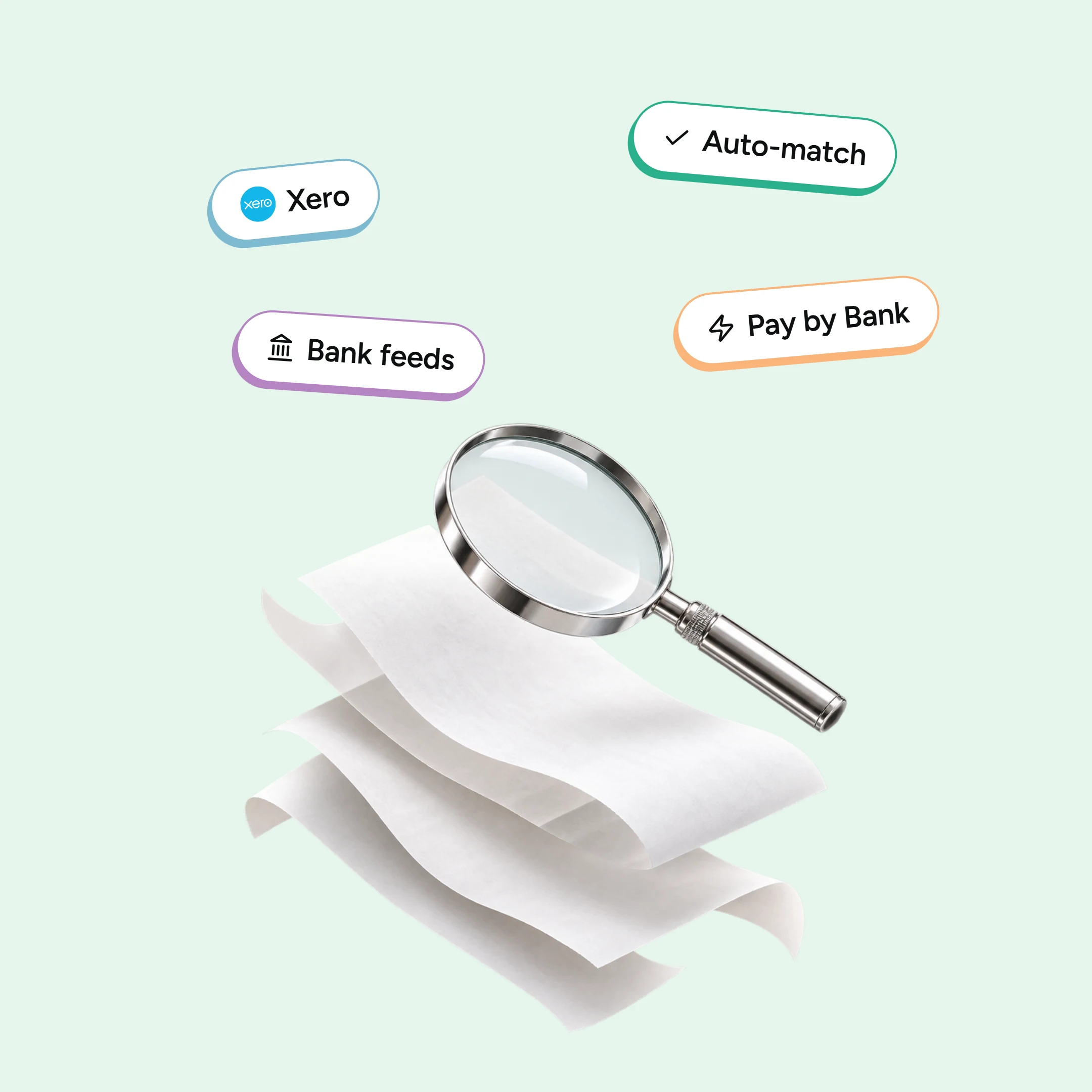
Xero uses JAX, its AI assistant built on 20 years of UK small business data, to power automatic bank reconciliation. JAX’s automatic bank reconciliation feature is currently in beta and matches statement lines to invoices and transactions at 97% accuracy. The better the payment data coming in, particularly the reference attached to each payment, the more accurately JAX can match without anyone having to step in.
Why manual bank transfers make it harder
When a customer pays by manual bank transfer, the payment often arrives with a vague or missing reference, a customer name that does not quite match the account in Xero, or no invoice number at all. Xero has less to work with. So JAX is less likely to suggest a confident match and the manual hunt begins.
What follows is the familiar process: searching open invoices by amount, date, or customer name, or chasing the customer to find out which invoice they were paying. On a quiet month that is a minor inconvenience. On a busy one, it becomes a significant time cost and the main source of reconciliation errors.
Step by step: Reconcile payments in Xero
The process is the same each time, whether you are confirming automatic matches or finding them manually.
- Step 1: Open the bank account
In Xero, go to Accounting, then Bank Accounts, and select the account you want to reconcile.
- Step 2: Review suggested matches
For each bank statement line, Xero suggests a matching invoice, bill, or transaction where it can. JAX powers these suggestions based on reference, amount, date, and previous match history.
- Step 3: Confirm correct matches
Where the suggested match is right, confirm it. The payment is tied to the invoice and the invoice is marked as paid.
- Step 4: Find matches manually
Where the reference is unclear or missing, search by amount, date, or customer to find the right invoice and match it manually.
- Step 5: Create transactions for non-invoice items
For bank fees, transfers, or anything that is not an invoice, create a transaction and code it to the right account
- Step 6: Repeat until reconciled
Continue until the statement balance in Xero agrees with your bank statement balance and the account is fully reconciled.
How Pay by Bank makes most of this automatic
The step that makes the biggest difference to reconciliation is not in Xero, it is in the payment method you offer customers.
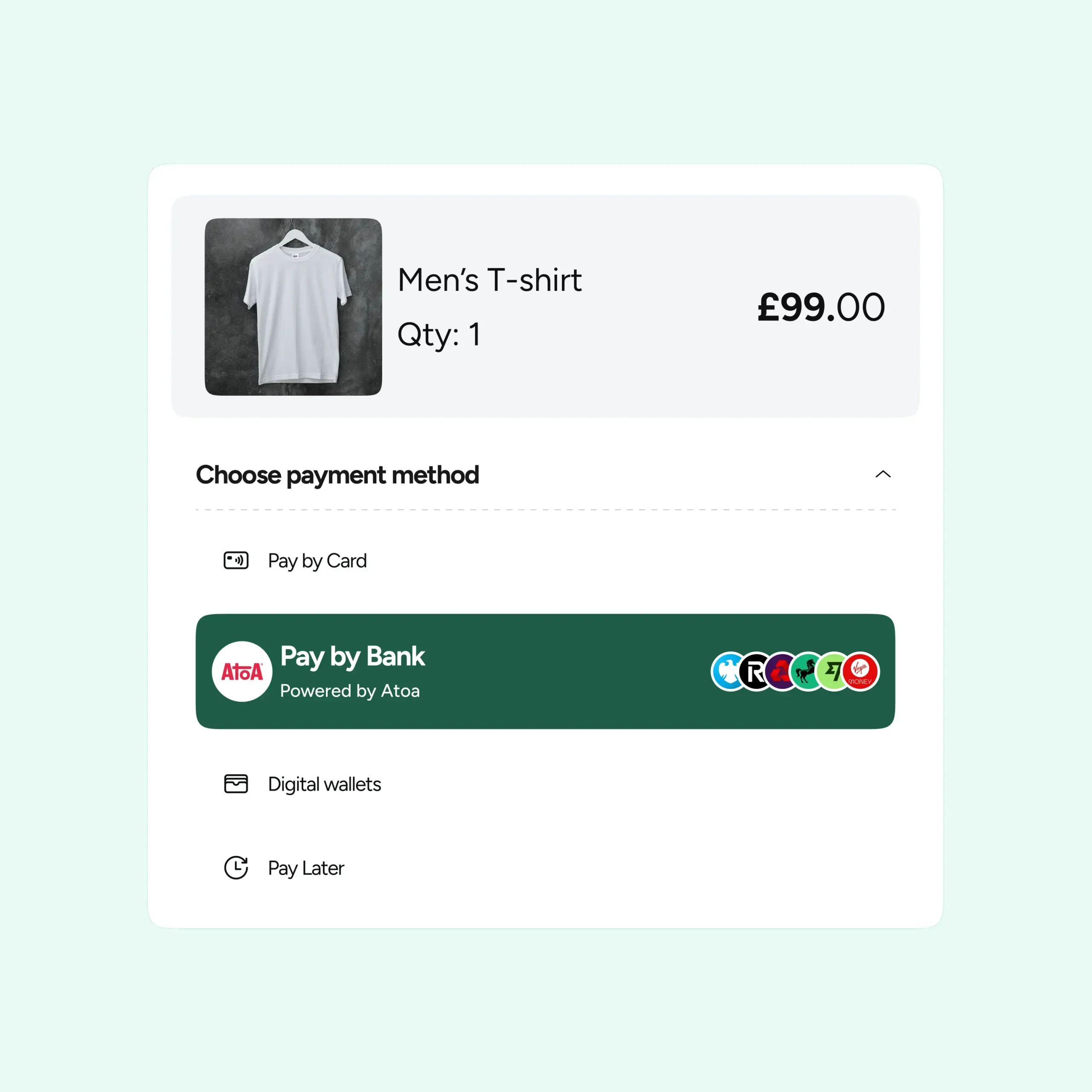
With Atoa Pay by Bank, the customer approves an account-to-account payment in their own Bank app. And the payment carries the invoice reference with it from the start. Because the reference travels with the money and the payment settles over the UK Faster Payments network, Xero receives a clean, identifiable transaction that JAX can match to the right invoice automatically.
Two things drive this:
- A reference that travels with the payment: When the payment is generated from a ‘Pay now’ link attached to the invoice, the reference is embedded in the transaction. There is nothing for anyone to guess or trace afterwards.
- End-of-day payouts: Where funds are pooled and settled once a day into your account, multiple individual payments arrive as one predictable entry rather than dozens of separate lines. Far fewer lines to reconcile, far less to review.
That combination is what makes automatic reconciliation in Xero possible without manual input from your team. The result is that exceptions, not the whole ledger, are what your team spends time on.
How to reduce manual reconciliation in practice
A few habits that make a meaningful difference:
- Send payment links with a note or reference, so the payment matches automatically instead of arriving unlabelled.
- Use Pay by Bank for Xero invoices, so payments carry the invoice reference, settle quickly, and match automatically rather than waiting to be traced.
- Use end-of-day payouts where your provider supports them, so transactions consolidate rather than arriving as individual lines throughout the day.
- Connect your payment app to Xero. See Atoa for Xero and our guide to accepting invoice payments in Xero.
What cleaner reconciliation saves your finance team
When most payments match themselves, the payoff is time and accuracy. Your finance team stops tracing unlabelled transfers and chasing customers for references. Month-end closes faster. The numbers in your reports are current rather than a week behind waiting for manual matches to clear.
It also reduces the errors that happen when payments are matched under time pressure. Moving reconciliation from a manual chase to an automatic match is one of the clearest operational improvements a payment method can offer a finance team.
FAQ
What is payment reconciliation in Xero?
Payment reconciliation in Xero is the process of matching the payments shown in your bank account with the corresponding invoices, bills or expenses recorded in Xero. This helps make sure your Xero records match what’s actually happening in your bank account.
How do I reconcile payments in Xero?
To reconcile a payment, open the relevant bank account in Xero and review the transactions waiting to be reconciled. Xero will suggest possible matches where it can. You can confirm the correct match, find a transaction manually, or create a new transaction if there isn’t already a corresponding record in Xero.
How can I reduce unmatched payments in Xero?
Start by making it easier to identify each payment. Payment links that include the invoice reference can help connect incoming funds to the correct invoice. Using Pay by Bank with an integrated payment provider can further reduce the amount of manual matching required.
Does Pay by Bank make reconciliation easier?
Yes. Because the payment carries the invoice reference and settles quickly, far more payments reconcile automatically, cutting the manual matching that vague bank transfers cause.
Can payments reconcile automatically in Xero?
Yes, Xero can automate parts of the reconciliation process. Its AI-powered tools can suggest matches between bank transactions and records in Xero, reducing the amount of manual matching your team needs to do. Clear payment references and structured transaction data can make these matches easier and more accurate.
Get cleaner, faster reconciliation with Atoa for Xero: reference-tagged Pay by Bank and end-of-day payouts mean most payments match themselves.
Sources
- Xero JAX automatic bank reconciliation (97% accuracy, beta): Xero UK, AI in accounting
- Xero bank reconciliation process: Xero Central, reconcile your bank account
- Atoa for Xero: paywithatoa.co.uk/xero
- Accepting invoice payments in Xero: paywithatoa.co.uk/blog/how-to-accept-invoice-payments-in-xero
SHARE ARTICLE
Share link copied!