
Ready to get started?
Easily integrate next-generation payments and financial data into any app. Build powerful products your customers love.
SHARE ARTICLE


 Share link copied!
You’ve seen QR codes at checkouts, on restaurant tables, on market stalls. You’ve probably scanned one yourself. And at some point, you may have also thought: how do I get one for my business?
It’s much simpler than most people expect.
What you actually need to get started
Forget third-party QR generators, design tools, or payment plugins. If you’re looking for a proper payment QR code tied to a real business account, what you need is a payment provider that has it built in.
Atoa (AH-tuh-wah) is a UK-based, FCA-authorised Pay by Bank payment provider, and QR code payments are a core part of how it works. When you sign up, your QR code is already there in your dashboard, ready to use. No setup, no configuration, no waiting.
How to create a QR code for payment with Atoa
Here is the full process:
Step 1: Sign up for an Atoa account
Visit this Atoa website and create your business account. The onboarding process is straightforward and handled entirely online. You can also contact us at hello@paywithatoa.co.uk and we’ll help you get set up.
Step 2: Log in to your Atoa dashboard
Once you’re set up, your QR code is already waiting for you in the dashboard. It’s an in-built feature, not something you have to activate separately.
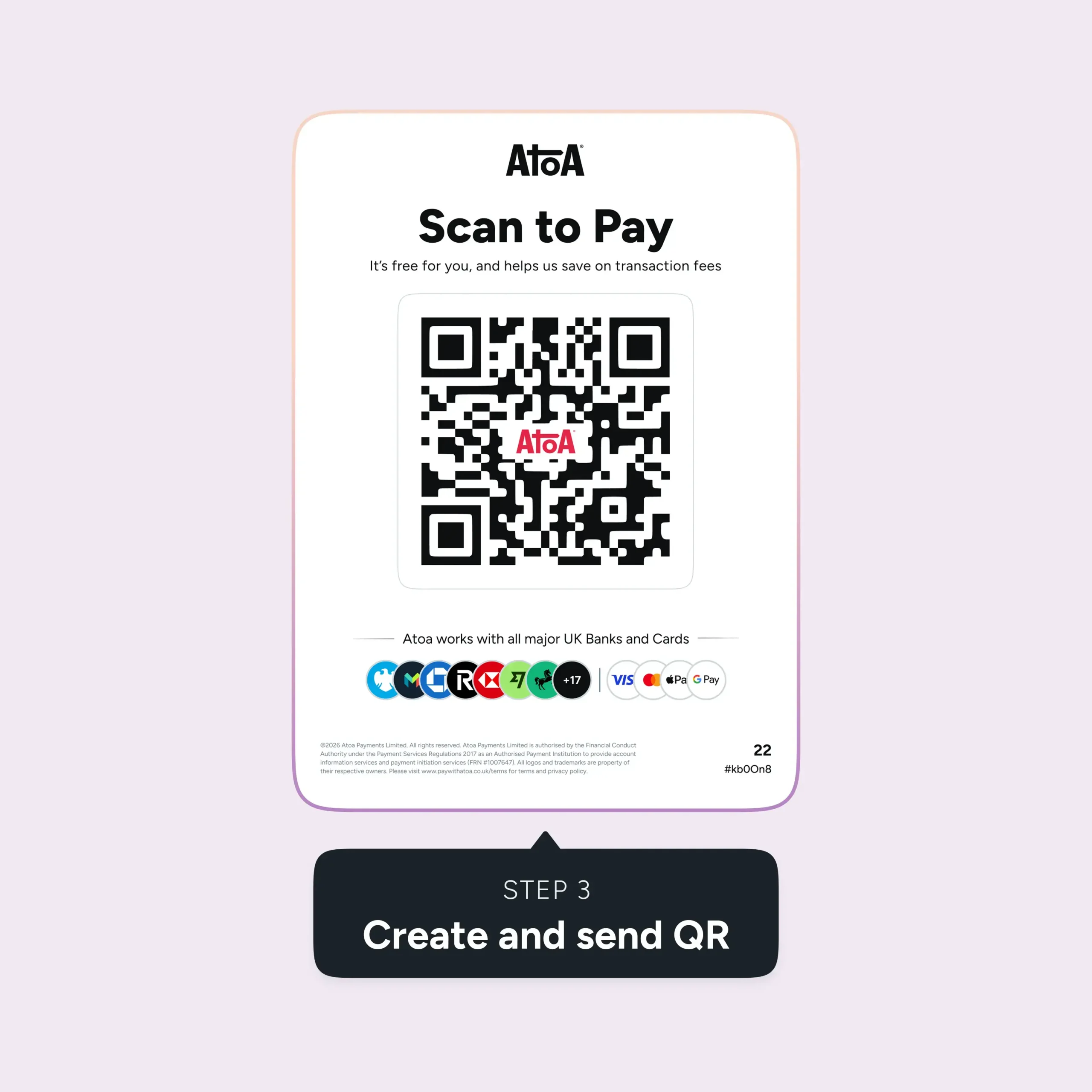
Step 3: Download or display your QR code
From the dashboard, you can download your QR code and do whatever works for your setup:
- Print it out and put it on a stand at the till
- Display it on your phone, tablet, or POS screen
- Send the QR code link directly to a customer by SMS or email
Step 4: Set the amount (or let the customer do it)
You can fix the payment amount in advance, which is handy for set-price products or services. Or you can leave it open and let the customer type in what they owe. Both options are available depending on how you work.
Step 5: Start accepting payments
Your customer scans the code, authenticates through their Bank app, and the payment comes through via the Faster Payments network. If you have card payments enabled on your account, your QR code handles those too, at competitive rates.
That’s it. There’s no separate QR code for Pay by Bank and another for cards. One code, both payment methods.
Where you can use your Atoa QR code
This is where it gets flexible. Your QR code is not tied to one location or one device.
At the till: Set up a printed QR stand at your checkout. Customers scan and pay in their own time, no card machine required.
On any screen: Your QR code works just as well displayed on a phone or tablet as it does on a printed stand. Wherever you show it, customers get the same quick checkout.
Remotely: Pull up the QR code option in your dashboard and send the link by SMS or email. Your customer scans from wherever they are and pays instantly.
According to the Open Banking Implementation Entity, open banking payments in the UK have grown significantly year on year, with millions of consumers now using their Bank app to pay businesses directly. QR code payments are one of the simplest entry points into that.
Why this matters for your business
Card machines have their place, but they come with rental costs, transaction fees, and settlement delays. A QR code payment through Atoa uses the Faster Payments network, which means the money reaches your account fast, and the fees are significantly lower than card processing.
You’re also not locked into one way of working. Face-to-face or remote, fixed price or open amount, Pay by Bank or card: your QR code adapts.
Ready to create yours?
Sign up with Atoa and your payment QR code will be waiting for you in the dashboard from day one. No extra tools, no technical setup, and no long contracts.
If you’d also like to accept card payments, Atoa’s card payment option is available alongside Pay by Bank, so your customers always have a choice.
FAQs
Can I create a QR code for free?
With Atoa, your QR code is included as part of your account. There’s no extra charge to generate or use it.
Do customers need an app to pay by QR code?
They just need their bank app, which they already have. No downloads, no sign-ups.
Can I use one QR code for both Pay by Bank and card payments?
Yes. If card payments are enabled on your Atoa account, your QR code accepts both.
Does the QR code work for remote payments too?
Yes. You can send the QR code link by SMS or email, and your customer scans it from wherever they are.
SHARE ARTICLE
Share link copied!